



Steam, arguably the most popular digital distribution platform for PC gaming, offers a user-friendly refund policy that allows gamers to request refunds for their purchases under certain conditions — handy when so many games are releasing broken these days. Whether you made an accidental purchase or encountered technical issues with the game, Steam provides a straightforward process for refunding games, however, you must have played the game for less than two hours.
Got a game you want to get your money back for? Let’s guide you through the step-by-step process of getting a refund on Steam for My Neighbor’s Lonely Wife 2 that you definitely bought by accident.
1. Navigating to the Steam Support Page
The first step in initiating a game refund on Steam is to visit the Steam Support page. This is the central hub for all customer support-related inquiries and services. You can access the page by going to https://help.steampowered.com/ in your web browser.
2. Logging In to Your Steam Account
Once on the Steam Support page, you’ll need to log in to your Steam account. This step is crucial as it ensures that the refund request is associated with the correct account, allowing for a smoother process.
3. Selecting the Game for Refund
After logging in, navigate to the game you wish to refund. Click on the game title, and you’ll be directed to a page with various support options related to that specific game.
4. Choosing a Refund Option
On the game support page, Steam provides a list of common issues. Select the issue that aligns with your situation. These issues might include “I purchased this by accident” or “It’s not fun.” Choosing the most appropriate option helps Steam understand the reason behind your refund request.
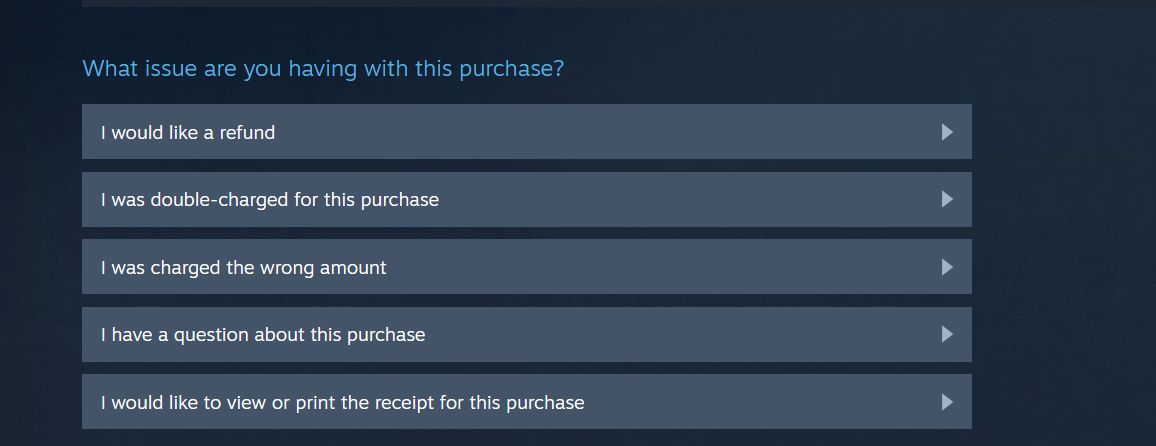
5. Submitting the Refund Request
Once you’ve chosen the reason for your refund, follow the prompts to confirm your request. Click on the “Submit Request” button. This action officially sends your refund request to Steam for review.
6. Waiting for Approval
After submitting your refund request, Steam’s support team will review it. Refund requests are generally more likely to be approved if they meet the criteria outlined in Steam’s refund policy. This policy typically allows refunds within 14 days of purchase and with less than 2 hours of playtime. However, it’s essential to check Steam’s refund policy for the latest information, as conditions may vary.
7. Checking Your Steam Wallet or Payment Method
If your refund request is approved, the funds will usually be returned to your Steam Wallet or the original payment method used for the purchase. It’s advisable to keep an eye on your Steam Wallet balance or check your payment method to ensure that the refund has been processed successfully.
Refunding a game on Steam is a straightforward process that can be completed through the Steam Support page. By properly selecting the reason for your refund and adhering to Steam’s refund policy, you increase the likelihood of a successful refund. There may be extenuating circumstances for games giving refunds beyond the 2-hour window, but this isn’t very common at all. Keep in mind that policies and procedures may change, so it’s always a good idea to consult the Steam Support website for the most up-to-date information.
READ NEXT: Steam: How to Easily Uninstall Games
Some of the coverage you find on Cultured Vultures contains affiliate links, which provide us with small commissions based on purchases made from visiting our site.