



Now that everyone has access — Europe, USA, Japan; the lot — to PSN ID changes, millions of regretful PS4 owners are no doubt eager to exorcise 420Cr1st1ano from the annals of history forever. While you can do it on your web browser, it’s far simpler to change your PSN ID on your PS4.
Here’s how you do it.
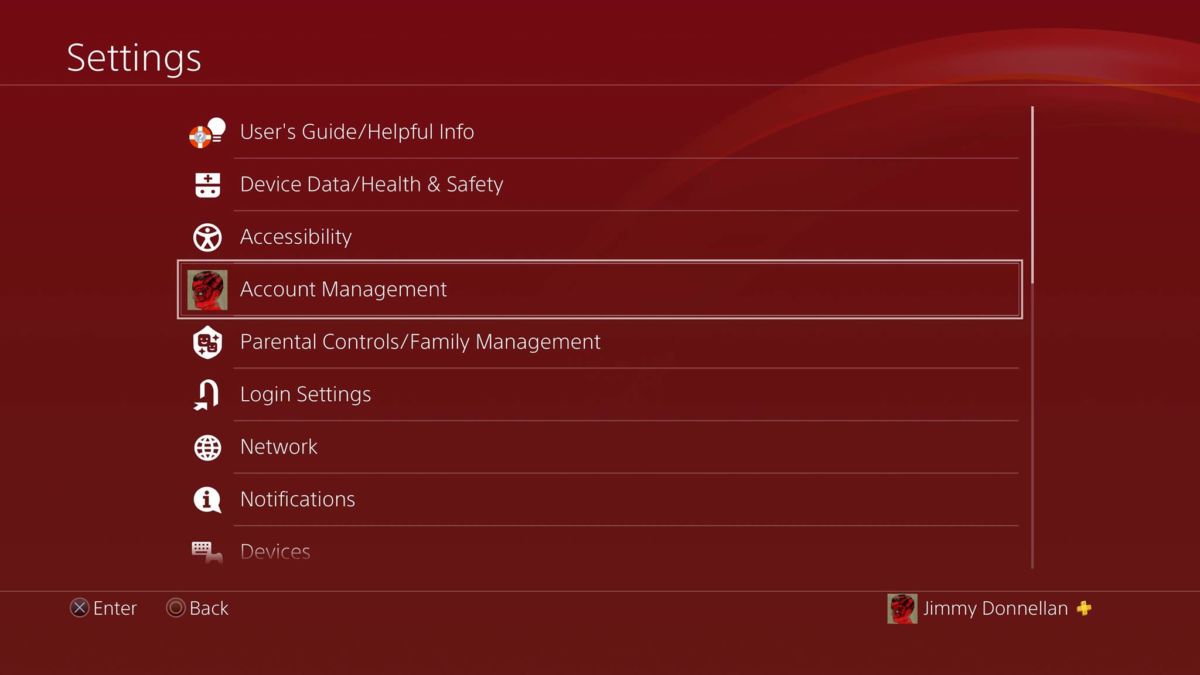
First off, go to settings (yes, my background is very cool, thank you).

Scroll down to Account Management.
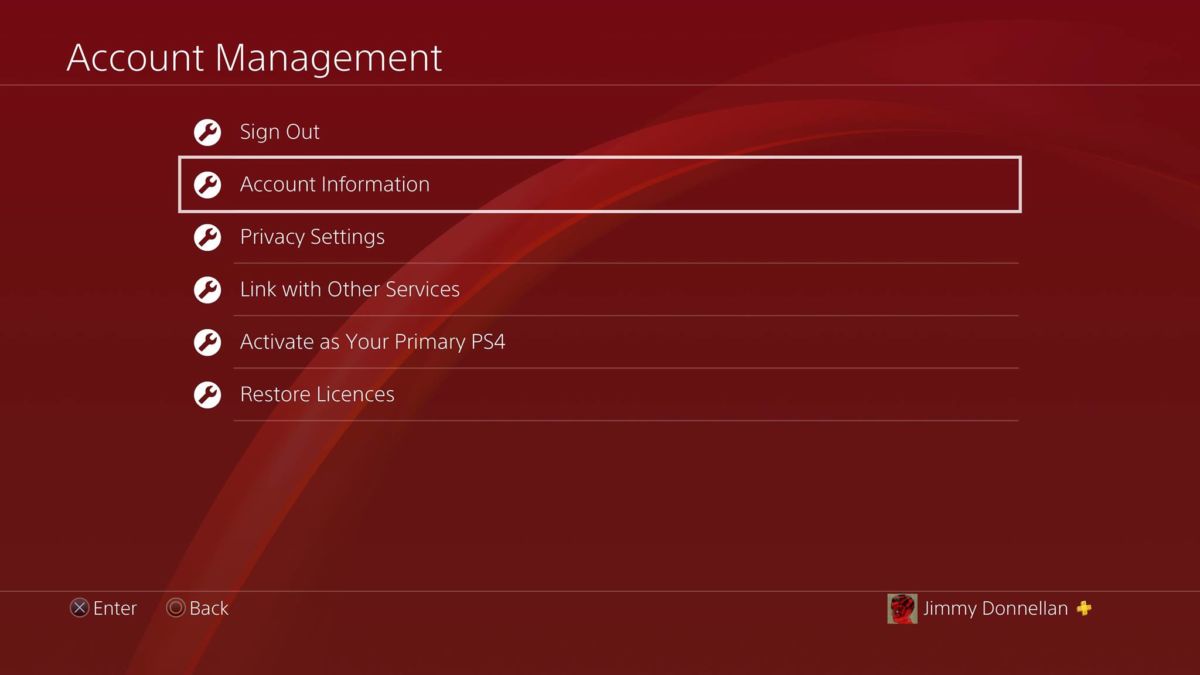
Select Account Information.
Find Profile, which should be about halfway down.

And then, funnily enough, select Online ID.

Now here’s where things get difficult. Try not to have a deep sense of guilt if you have had your PSN ID for almost a decade and then write in what you want your PSN ID to be. Remember: swearing/anything even slightly rude is not allowed, as I found out when I tried to claim “Melons” because it’s family nickname, which is innocuous but apparently too breast-y for Sony’s liking.
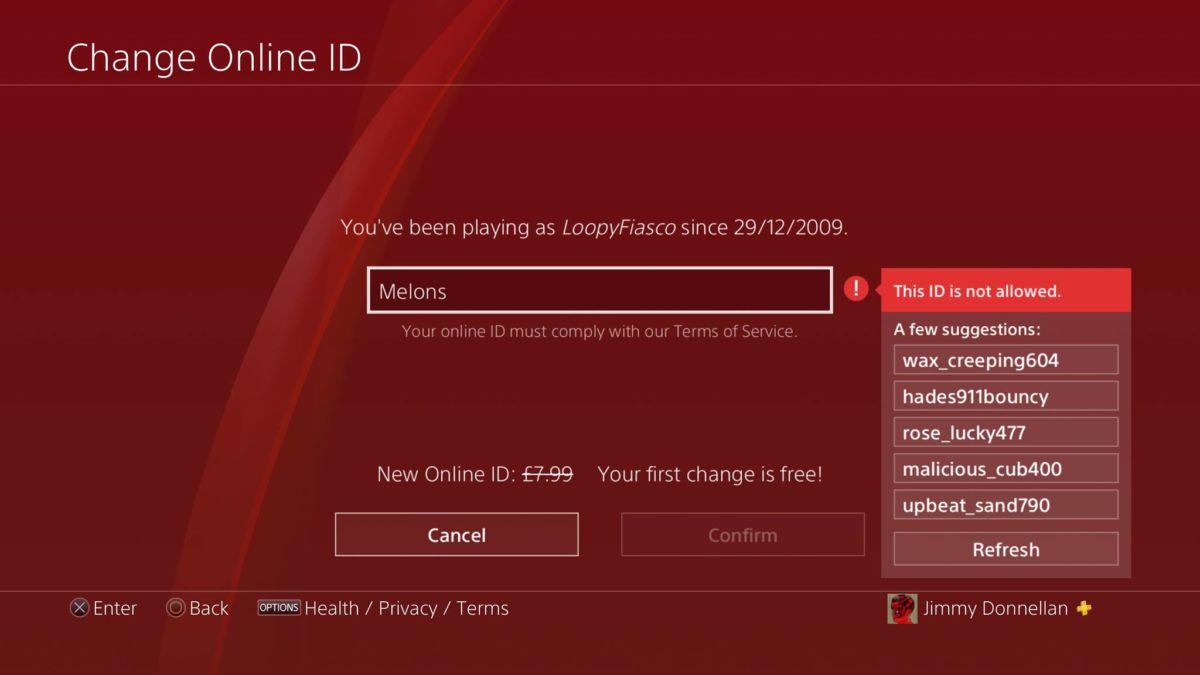
You will have to try and confirm it before the system will tell you whether or not it’s allowed.
The first PSN ID name change is free, but you will incur a charge every time thereafter. You can even revert back to your original ID, though you will have to go through customer support.
In addition, bear in mind that this process is a work in progress from Sony, who have specifically laid out that you may encounter problems. Be sure to check out the games with known issues and critical issues before you commit to the name change.
Those who have changed their PSN ID have reported issues with partying up for upwards of fifteen minutes, so expect some waiting before everything is updated properly.
MORE PS4: Best PS4 Horror Games | Best PS4 Single-Player Games | PlayStation Now PS4 Games: The Complete List
Some of the coverage you find on Cultured Vultures contains affiliate links, which provide us with small commissions based on purchases made from visiting our site.