


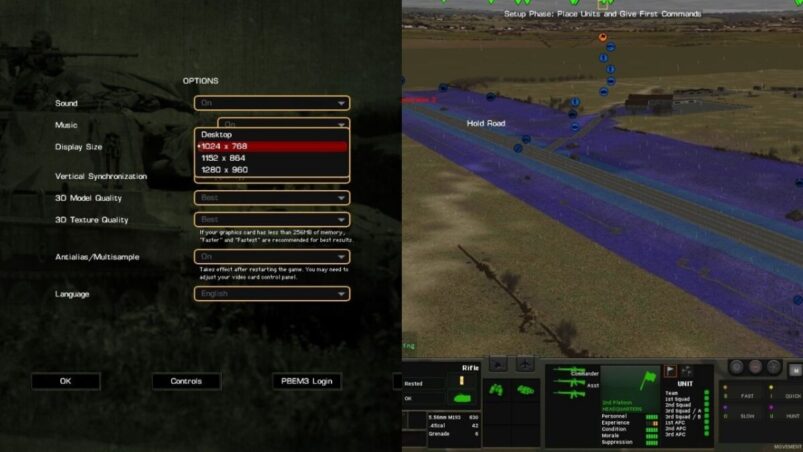
The Combat Mission games, including Combat Mission: Cold War, are based on a relatively old engine that is optimized for older systems and smaller resolution screens. Because of this, the UI may be difficult to read and understand without prior knowledge of the series.
Here’s everything you need to know about Combat Mission: Cold War’s UI.
Best Settings
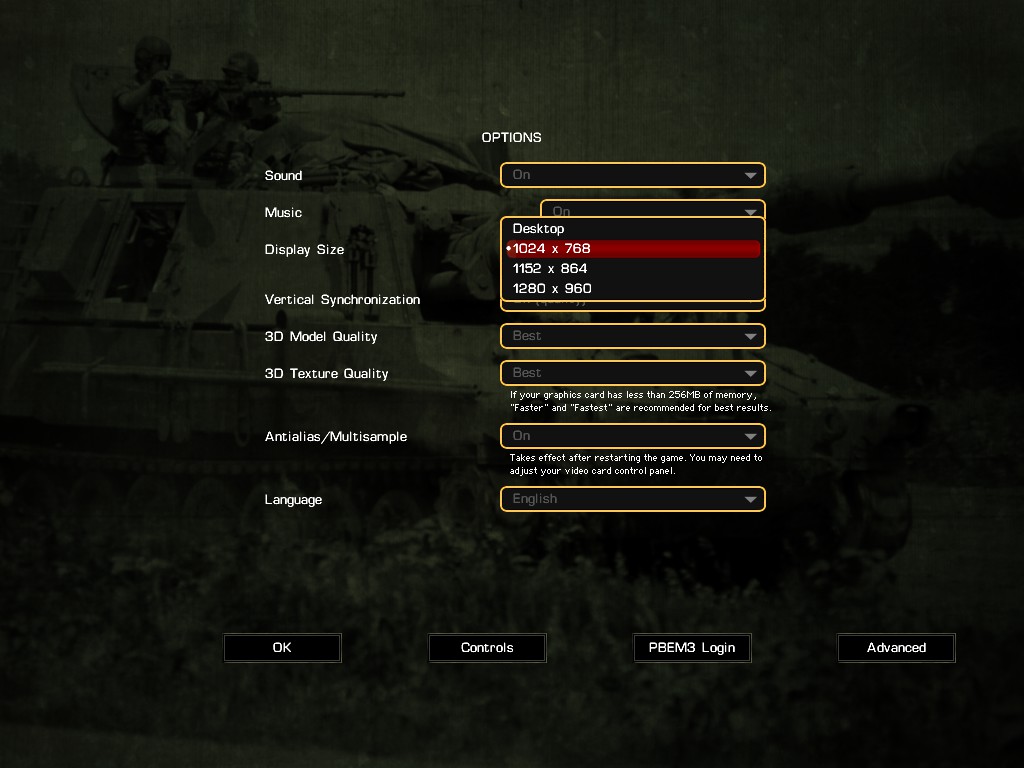
Combat Mission: Cold War includes no UI scaling options, meaning that the UI will appear tiny and difficult to read on a higher resolution screen. The only way to make the UI more readable is to set the game’s resolution to anything that isn’t the Desktop setting in the options menu. However, it’s recommended to set the resolution to 1024×768 as the UI will utilize all negative space in the lower portion of the screen and help with readability.
Unit UI

Combat Mission’s UI is quite dense in the amount of information it presents to the player and can get quite confusing and overwhelming. To help understand the UI better, it can be roughly split into three sections: status, weapons and equipment, and commands and orders.
The left third of the UI represents the selected unit’s status effects, as well as their position in the chain of command. The most vital elements to keep track of are the unit stamina found in the center upper portion of this UI section, the unit’s pinning status bar found in the bottom center of this section, and finally the ammo count found to the right of the pinning status bar.
The center section of the unit UI contains information about all the available equipment and weapons the unit has, as well as buttons for the possibility of off-map call-in strikes, such as artillery or aerial bombardment. If the selected unit is a vehicle, they’ll also have additional menus representing on-board component status and a run-down of the unit’s defences against different ammo types.
The rightmost third of the unit UI contains a window representing the unit’s available commands split into four selectable sections for movement, combat, special, or administrative orders. If players chose to play through the given scenario in the turn-based mode, they’ll notice additional time control buttons above the pause and menu buttons.
Before getting into the challenges of Cold War combined arms warfare, players will have to deal with the UI and the game’s presentation. Knowing how to read the game’s feedback on friendly troops will serve as a baseline to learning Combat Mission’s intricacies.
Combat Mission: Cold War is available on PC.
READ NEXT: Kainga Strategy Guide: Thinkers, Karma, Terrain, and More
Some of the coverage you find on Cultured Vultures contains affiliate links, which provide us with small commissions based on purchases made from visiting our site.