


Want to enjoy the drive without spending the whole journey steering around traffic in Grand Theft Auto 6? Lord, is there a lot of traffic in this game sometimes. Well, luckily, GTA 6’s auto-drive feature lets your character follow a route while you watch Leonida go by.
How To Turn On Auto-Drive In GTA 6
Auto-drive is activated through cinematic view, and is available from the beginning of the game. Bet there was a temptation for it to be made exclusive to the Ultimate Edition, though.
With the default PS5 and Xbox controls:
- Get into a car and set a waypoint.
- Hold Down on the D-pad to access the camera options.
- Select Options/Menu to enter cinematic view.
- Hold Circle/B to activate auto-drive.
If these aren’t the right controls for you, bear in mind that you may have selected another control scheme.
Can You Change The Auto-Drive Speed?
There are three speed settings, allowing you to adjust the pace of the journey. The slowest speed is absolutely glacial, though.
Even at its fastest, auto-drive obeys traffic rules and stops at signals. Allow some extra time if you’re used to treating every pavement as an additional lane. Maybe wander off and have a cup of tea.
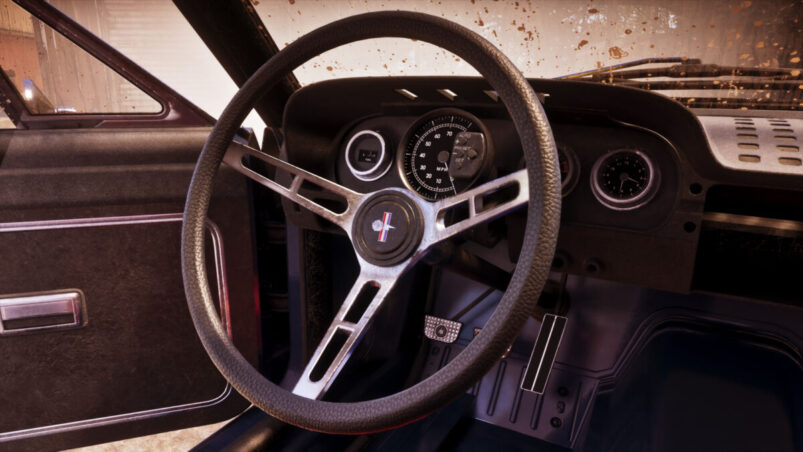
It’s useful for longer journeys and listening to conversations, as well as bizarrely being one of the only ways you can see inside your car. But bear in mind that you may miss a lot of the really amazing ambient stranger moments this way. Auto-drive is a useful alternative if you’re too broke for fast travel, at least.
Need more car stuff? Here’s how you can flip them with your bare hands. No, really.
Grand Theft Auto 6 is available now on PS5 and Xbox Series X and S.
READ NEXT: Grand Theft Auto 6 (PS5) REVIEW
Some of the coverage you find on Cultured Vultures contains affiliate links, which provide us with small commissions based on purchases made from visiting our site.