


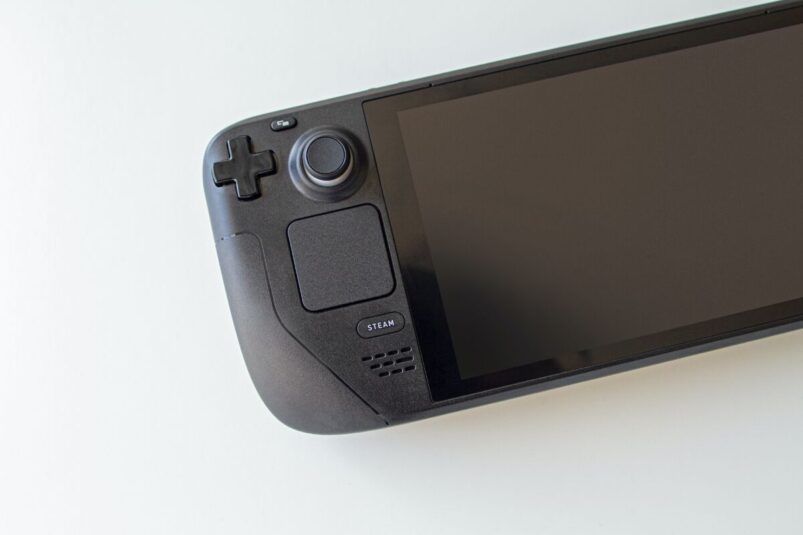
Still annoyed that Grand Theft Auto 6 isn’t yet coming to PC? Well, if you’ve got a PS5 copy of GTA 6 and want to play it on your Steam Deck, you can stream it from your console using chiaki-ng, the app formerly known as Chiaki4Deck, and play GTA 6 on the toilet (internet connection and legs willing). It works with other PS5 games too, so you only need to set it up once.
With this method, the PS5 runs the game and the Steam Deck acts as your screen and controller. You’ll need a PS5 or PS5 Pro, a copy of the game on that console and a Steam Deck connected to the same home network for the initial setup. It sound daunting, but setting everything up actually isn’t too bad at all.
1. Enable Remote Play on your PS5
On your PS5, go to Settings > System > Remote Play and switch on Enable Remote Play. Leave the console on while you set up the Deck.
If you want to wake the PS5 from your Steam Deck, go to Settings > System > Power Saving > Features Available in Rest Mode and turn on Stay Connected to the Internet and Enable Turning On PS5 from Network. Put your console into Rest Mode when you’re done playing so chiaki-ng can wake it next time.
2. Install chiaki-ng on your Steam Deck
This is the part where some people may get antsy, but don’t worry. It’s all very straightforward and legitimate:
- Press the Steam button and go to Power > Switch to Desktop.
- Open Discover, search for chiaki-ng and install it.
- Open the app with your Deck and PS5 connected to the same router. Your PS5 should appear in the main window.
3. Pair your Steam Deck with your PS5
Now for the bit where it may get slightly fiddly.
If chiaki-ng offers automatic registration through PlayStation Network, follow the prompt and sign in with the same PSN account you use on your PS5. Once the console appears as registered, you can move on to the next step.
If you’re pairing manually, select your PS5 in chiaki-ng and use PSN Login to fill in your account ID. On your PS5, go to Settings > System > Remote Play > Link Device. Enter the code shown on your TV into the Remote Play PIN field on your Deck, then select Register.
If the PS5 doesn’t show up at all, you can add it manually under Settings & Consoles > Register New in chiaki-ng. Enter your PS5’s IPv4 address, which you can find under Settings > System > System Software > Console Information on the console.
4. Launch GTA 6 from Gaming Mode
Just a few more, slightly fiddly steps to go.
In chiaki-ng’s main menu, choose Create Steam Shortcut, then select Create. Use the Return to Gaming Mode icon on the desktop and open chiaki-ng from the Non-Steam section of your library. Select your PS5, then launch GTA 6 from the console’s home screen as usual. If you bought it on disc, leave the disc in the PS5.
If the picture breaks up or the controls feel sluggish, connect the PS5 to your router with an Ethernet cable if you can to help with stability. You can keep the Deck on Wi‑Fi. If you’re still getting stutters, try lowering the stream’s bitrate or resolution in chiaki-ng. Game streaming is not always the most reliable in general, even with superfast broadband. Expect some hiccups
You can also use chiaki-ng away from home by setting up Remote Connection via PSN, but this does mean you’ll need to be turning your PS5 on while you’re out of the house. You’ll also probably be needing to be connected to secure wi-fi if out in public, which is easier said than done.
Is This All Good With Sony?
Technically, no. But realistically, yes.
Chiaki is an unofficial Remote Play app. Sony’s terms do prohibit unauthorised software, which means that you could technically face some kind of action from them, but we’re yet to hear of anyone actually getting into any trouble for streaming with the help of something like Chiaki.
If you’re unsure at all, do just err on the side of caution.
READ NEXT: GTA 6 Twitch Drops: How to Get Every Badge and Emote
Some of the coverage you find on Cultured Vultures contains affiliate links, which provide us with small commissions based on purchases made from visiting our site.