


Steam is a very complicated platform to play games on sometimes, especially when something goes wrong. One of the more unusual and common errors is when you cannot access your Steam library as it’s just a black screen. No matter how often you open and close Steam, the black screen in your library persists, meaning that you cannot play your games. Luckily, there are a couple of ways of fixing this Steam error.
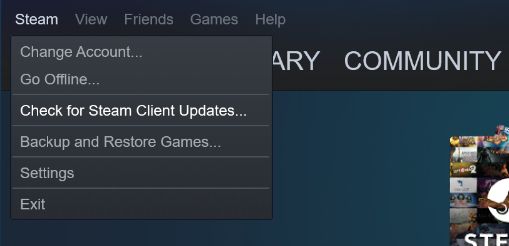
The first is to go to the top left of the Steam application, select Steam, hit Check For Steam Client Updates, and see if the update returns your library back to normal.
If that doesn’t work, there is a second method for fixing the Steam black screen issue. Simply drag the Steam application to another monitor if you’re using two or more monitors, then return it to the monitor it was previously on. After a second, the Steam library should return fixed and you can start spending all your day playing ULTRAKILL as intended.
If none of these quick options work, there may be a deeper problem with your PC, like drivers being outdated. The methodology for this will be different from setup to setup, though there are applications out there that will automatically check that all your drivers are updated and apply any required updates, such as Nvidia’s GeForce Experience.
As for why this black screen issue happens, nobody is exactly sure. Some believe it’s to do with different monitors having different specifications, whereas others think it’s a settings or cache conflict. Whatever is the cause, it’s been an issue for many Steam users for many years, so here’s hoping Valve address it before long.
READ NEXT: 8 Steam Early Access Games Stuck In Development Limbo
Some of the coverage you find on Cultured Vultures contains affiliate links, which provide us with small commissions based on purchases made from visiting our site.